<?xml version="1.0" encoding="utf-8"?><feed xmlns="http://www.w3.org/2005/Atom" ><generator uri="https://jekyllrb.com/" version="3.10.0">Jekyll</generator><link href="https://suburban-daredevil.github.io/feed.xml" rel="self" type="application/atom+xml" /><link href="https://suburban-daredevil.github.io/" rel="alternate" type="text/html" /><updated>2026-09-03T19:32:12+00:00</updated><id>https://suburban-daredevil.github.io/feed.xml</id><title type="html">Sriram’s Digital Home</title><subtitle>Sriram&apos;s personal website for portfolio and blogs.</subtitle><author><name>Sriram Srinivasan</name></author><entry><title type="html">Connecting VS Code to ARC Cluster</title><link href="https://suburban-daredevil.github.io/professional/connect-vscode-to-ARC-cluster/" rel="alternate" type="text/html" title="Connecting VS Code to ARC Cluster" /><published>2025-02-25T00:00:00+00:00</published><updated>2025-03-02T00:00:00+00:00</updated><id>https://suburban-daredevil.github.io/professional/connect-vscode-to-ARC-cluster</id><content type="html" xml:base="https://suburban-daredevil.github.io/professional/connect-vscode-to-ARC-cluster/"><![CDATA[<p><a href="https://arc.vt.edu/">ARC</a> stands for Advanced Research Computing at Virginia Tech. They provide access to High Performance Computing devices with GPUs 
useful for post-training / fine-tuning LLMs with custom datasets along with associated memory to store and retrieve the files required for that compute.
In this blog post, let us look at the steps to use VS Code to connect to a remote ARC Cluster.</p>

<p>In this blog post, we’ll see the steps required to connect VS Code to an ARC Cluster. This approach to achieve is much more tricky than a regular SSH into the ARC Cluster from a VS Code terminal. 
The major advantage of connecting locally installed VS Code with remote ARC Clustes is that it serves as best of both world combining both local development and remote high performance compute that can be accessed on-demand.</p>

<p>Kindly note that, ARC has provided sufficient resources in the form of <a href="https://www.docs.arc.vt.edu/index.html">documentation</a>, <a href="https://www.docs.arc.vt.edu/usage/video.html#video">video tutorials</a>, <a href="https://www.docs.arc.vt.edu/usage/workshops.html">work shops</a>, <a href="https://docs.google.com/presentation/d/1AjcTkYjcYQT7SowSosWFemgBvjpWzVnl/edit">presentations</a>, <a href="https://github.com/news-vt/vt-arc-quickstart">github repos</a> and <a href="https://outlook.office365.com/calendar/published/a0be53f5412d4c1c9317ad1bdb8e2b14@vt.edu/f14d63b1d9e44698aedcb19f8dcaff2d527063200746956291/calendar.html">office hours</a> to support VT’s academic community.
I totally respect that. But I do feel that these resources are a little scatterred and it might overwhelm someone who is starting out with HPC for the first time and make them  delay the usage of ARC (atleast I did that).
Since, how great ARC is, it would be great if each and every student at VT has access to ARC and take leverage of the wonderful computing resources they have in offer as soon as possible.
Secondly, this blog also servers as a guide to help someone who needs to setup ARC from scratch on new devices.</p>

<p>That said and done, I do have a couple of disclaimers here.</p>
<ol>
  <li>The screenshots and commands posted here are tried and tested in a Windows 11 Laptop. I can’t provide the guarentee that the same will be applicable for Mac and Linux users.
But it’s not dull out there for Mac and Linux users. There are numerable resources linked to this blog, that will help you cruise through any difficulty that you may (hopefully not) encounter.</li>
  <li>The scope of this blog is limited only to connecting to connecting a local VS Code to an ARC Compute Cluster. Futher steps will come up in upcoming blog posts.</li>
</ol>

<h3 id="prerequisites">Prerequisites</h3>
<ul>
  <li>Getting ARC Access
    <ul>
      <li>A student at VT who is in need of high performance compute resources for work can get access to an ARC cluster.</li>
      <li>The first point of contact is your PI / research advisor.</li>
      <li>Contact them to get access to ARC’s cluster.</li>
      <li>Your PI must create a project and give you access to that project.</li>
      <li><a href="https://coldfront.arc.vt.edu/">Coldfront</a>: Once you have access to ARC Cluster you will be able to view your <a href="https://coldfront.readthedocs.io/en/latest/howto/projects/">projects</a> and <a href="https://coldfront.readthedocs.io/en/latest/howto/allocations/">allocations</a></li>
    </ul>
  </li>
  <li>Installing VT’s Ivanti VPN
    <ul>
      <li>Users must be connected to VT’s VPN in order to connect with ARC</li>
      <li>You can use <a href="https://4help.vt.edu/sp?id=kb_article_view&amp;sysparm_article=KB0010740&amp;sys_kb_id=97cd0b511b665214d2e46201604bcbe5&amp;spa=1">this</a> link to install VT’s Ivanti VPN for their OS</li>
      <li>Once installed, activate the VPN</li>
    </ul>
  </li>
  <li>Installing VS Code
    <ul>
      <li>If you have not already done so, you can install VS Code by following this <a href="https://code.visualstudio.com/download">link</a>.</li>
    </ul>
  </li>
  <li>Installing extensions in VS Code
    <ul>
      <li>Start VS Code</li>
      <li>Hit Ctrl/Cmd + Shift + x to open up the Extensions panel.</li>
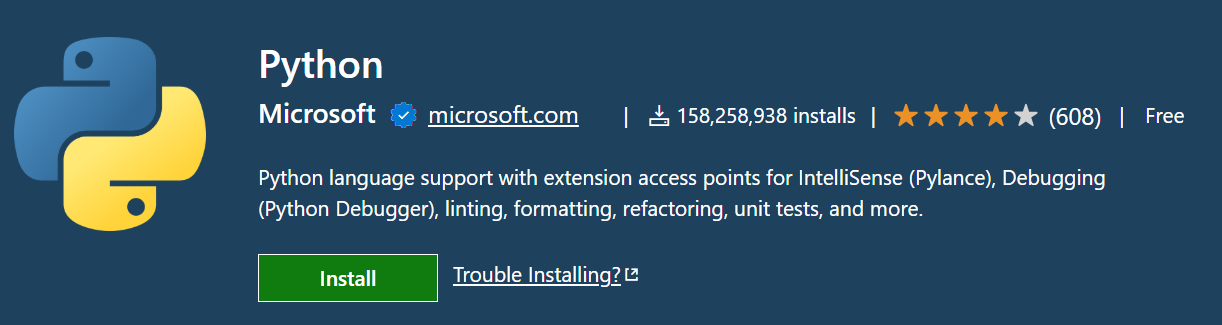
      <li>Search and install the following extensions
        <ul>
          <li><a href="https://marketplace.visualstudio.com/items?itemName=ms-python.python">Python</a></li>
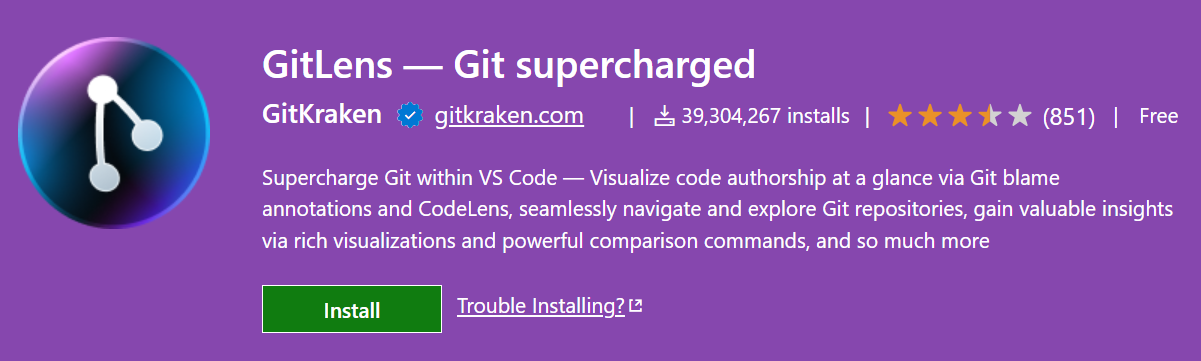
          <li><a href="https://marketplace.visualstudio.com/items?itemName=eamodio.gitlens">GitLens</a></li>
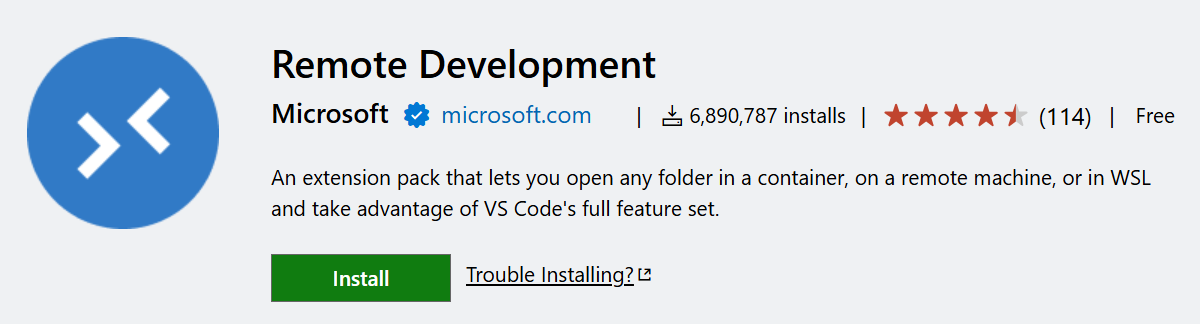
          <li><a href="https://marketplace.visualstudio.com/items?itemName=ms-vscode-remote.vscode-remote-extensionpack">Remote Development</a></li>
        </ul>
      </li>
    </ul>
  </li>
</ul>

<p><img src="/assets/images/blog1/02-03-2025-python-vscode-extension.png" alt="Python VS Code Extension" /> <br /><br />
<img src="/assets/images/blog1/02-03-2025-gitlens-vscode-extension.png" alt="Gitlens VS Code Extension" /> <br /><br />
<img src="/assets/images/blog1/02-03-2025-remote-development-vscode-extension.png" alt="Remote Development VS Code Extension" /></p>

<h3 id="steps-to-connect-vs-code">Steps to connect VS Code</h3>
<ul>
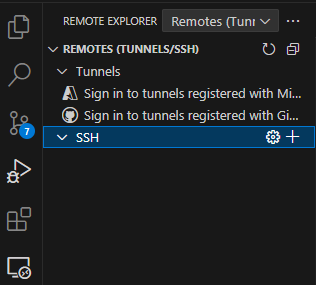
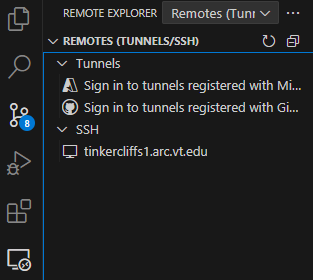
  <li>Click on the Remote Developement icon extension from the panel.</li>
  <li>Under the ssh tab, create the <code class="language-plaintext highlighter-rouge">+</code> icon to add a new ssh.</li>
</ul>

<p><img src="/assets/images/blog1/02-03-2025-click-on-remote-development-vscode-extension.png" alt="Click on Remote Development VS Code Extension" /></p>

<ul>
  <li>In the input box, type in <code class="language-plaintext highlighter-rouge">ssh &lt;your PID&gt;@tinkercliffs1.arc.vt.edu</code> and hit enter.</li>
</ul>

<p><img src="/assets/images/blog1/02-03-2025-ssh-your-pid.png" alt="Enter ssh PID@tinkercliffs1.arc.vt.edu" /></p>

<ul>
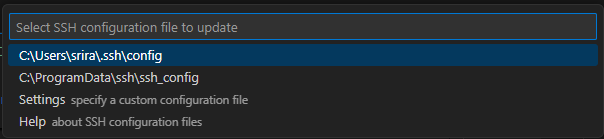
  <li>In the prompt that appears, select <code class="language-plaintext highlighter-rouge">C:\Users\&lt;username&gt;\.ssh\config</code> (the first option)</li>
</ul>

<p><img src="/assets/images/blog1/02-03-2025-ssh-user-config.png" alt="Select SSH Configuration file to update" /></p>

<ul>
  <li>Now you can see that the new host has been added to the list of available hosts under the SSH tab in the Remote Development extension on the left pane.</li>
  <li>Click on the <code class="language-plaintext highlighter-rouge">-&gt;</code> besides <code class="language-plaintext highlighter-rouge">tinkercliffs1.arc.vt.edu</code>. This will launch a new SSH session in the current window. If you want a new window, use the option adjacent to <code class="language-plaintext highlighter-rouge">-&gt;</code></li>
</ul>

<p><img src="/assets/images/blog1/02-03-2025-ssh-host-added.png" alt="Remote Host addeD" /></p>

<ul>
  <li>Next step, it asks for the OS, select Linux.</li>
  <li>Next step, it asks for your password, enter your VT Single Sign On (SSO) password</li>
</ul>

<p><img src="/assets/images/blog1/02-03-2025-ssh-password.png" alt="Enter password" /></p>

<ul>
  <li>Once the password is entered, you’ll get a Duo push onto your mobile device. Approve that.</li>
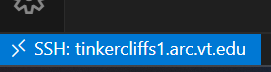
  <li>Once that is done, you are now connected and your login has been authenticated by the tinkercliffs1 cluster at ARC.</li>
  <li>You can verify that by viewing the bottom left corner of VS Code. It should display <code class="language-plaintext highlighter-rouge">SSH: tinkercliffs1.arc.vt.edu</code></li>
</ul>

<p><img src="/assets/images/blog1/02-03-2025-connection-successful.png" alt="Remote host connection successful" /></p>

<p><strong>Important: Make sure to not install any packages / modules at this step. You are currently in the login node. Installing packages or modules (like anaconda etc.) in this step might hinder your authentication in future access requests. You can install packages using the compute node</strong></p>

<h3 id="requesting-resources">Requesting resources</h3>
<ul>
  <li>
    <p>Once authenticated, the next step is to request resources from ARC. We’ll be using interact command for that.</p>
  </li>
  <li>
    <p>Open a new terminal and use the following command by replacing the <code class="language-plaintext highlighter-rouge">&lt;allocation-name&gt;</code> with your corresponging allocation name from <a href="https://coldfront.arc.vt.edu/">coldfront</a></p>
  </li>
</ul>

<div class="language-plaintext highlighter-rouge"><div class="highlight"><pre class="highlight"><code>interact --partition=dgx_normal_q --time=1:00:00  --gres=gpu:1 --account=&lt;allocation-name&gt; --nodes=1 --ntasks-per-node=1 --cpus-per-task=1
</code></pre></div></div>

<ul>
  <li>partition - keyword representing the type of GPU requested</li>
  <li>time - duration for which this resource has been requested</li>
  <li>account - project name from coldfront</li>
  <li>gres=gpu - number of GPUs requested</li>
</ul>

<p>Here is a <a href="https://www.docs.arc.vt.edu/resources/gpu.html">table</a> containing the list of ARC’s resources. You can check this out to try out various partitions and clusters offered by ARC.</p>

<p>Once this command is run, you’ll have to wait for sometime for the requested resource to be allocated. Once the resource is allocated, it means you have officially got your GPU.</p>

<p><img src="/assets/images/blog1/02-03-2025-compute-resource-allocated.png" alt="Compute resource allocation successful" /></p>

<p><strong>Important: Make a note of the name of your compute node. We’ll need it later to access it via SSH</strong></p>

<p>For example, my compute node’s name is - <code class="language-plaintext highlighter-rouge">tc-dgx006</code></p>

<h3 id="connecting-multiple-terminals-in-vs-code-to-the-compute-node">Connecting multiple terminals in VS Code to the compute node</h3>
<p>Once you have access to the compute node, you can connect multiple terminals to it by using SSH.</p>

<p>Open a new terminal in VS Code (the newly opened terminal would have already been authenticated)</p>
<ul>
  <li>Type <code class="language-plaintext highlighter-rouge">ssh &lt;your-PID&gt;@your-compute-node-name</code> and hit enter.</li>
  <li>On running this command successfully, you have entered SSH’ed into your compute node</li>
</ul>

<p><img src="/assets/images/blog1/02-03-2025-ssh-into-compute-node.png" alt="SSH into compute node" /></p>]]></content><author><name>Sriram Srinivasan</name></author><category term="professional" /><category term="Advanced Research Computing" /><category term="HPC" /><category term="GPUs" /><category term="Scaling" /><category term="Finetuning" /><category term="VS Code" /><category term="Local Development" /><category term="First blog" /><summary type="html"><![CDATA[ARC stands for Advanced Research Computing at Virginia Tech. They provide access to High Performance Computing devices with GPUs useful for post-training / fine-tuning LLMs with custom datasets along with associated memory to store and retrieve the files required for that compute. In this blog post, let us look at the steps to use VS Code to connect to a remote ARC Cluster. In this blog post, we’ll see the steps required to connect VS Code to an ARC Cluster. This approach to achieve is much more tricky than a regular SSH into the ARC Cluster from a VS Code terminal. The major advantage of connecting locally installed VS Code with remote ARC Clustes is that it serves as best of both world combining both local development and remote high performance compute that can be accessed on-demand. Kindly note that, ARC has provided sufficient resources in the form of documentation, video tutorials, work shops, presentations, github repos and office hours to support VT’s academic community. I totally respect that. But I do feel that these resources are a little scatterred and it might overwhelm someone who is starting out with HPC for the first time and make them delay the usage of ARC (atleast I did that). Since, how great ARC is, it would be great if each and every student at VT has access to ARC and take leverage of the wonderful computing resources they have in offer as soon as possible. Secondly, this blog also servers as a guide to help someone who needs to setup ARC from scratch on new devices. That said and done, I do have a couple of disclaimers here. The screenshots and commands posted here are tried and tested in a Windows 11 Laptop. I can’t provide the guarentee that the same will be applicable for Mac and Linux users. But it’s not dull out there for Mac and Linux users. There are numerable resources linked to this blog, that will help you cruise through any difficulty that you may (hopefully not) encounter. The scope of this blog is limited only to connecting to connecting a local VS Code to an ARC Compute Cluster. Futher steps will come up in upcoming blog posts. Prerequisites Getting ARC Access A student at VT who is in need of high performance compute resources for work can get access to an ARC cluster. The first point of contact is your PI / research advisor. Contact them to get access to ARC’s cluster. Your PI must create a project and give you access to that project. Coldfront: Once you have access to ARC Cluster you will be able to view your projects and allocations Installing VT’s Ivanti VPN Users must be connected to VT’s VPN in order to connect with ARC You can use this link to install VT’s Ivanti VPN for their OS Once installed, activate the VPN Installing VS Code If you have not already done so, you can install VS Code by following this link. Installing extensions in VS Code Start VS Code Hit Ctrl/Cmd + Shift + x to open up the Extensions panel. Search and install the following extensions Python GitLens Remote Development Steps to connect VS Code Click on the Remote Developement icon extension from the panel. Under the ssh tab, create the + icon to add a new ssh. In the input box, type in ssh &lt;your PID&gt;@tinkercliffs1.arc.vt.edu and hit enter. In the prompt that appears, select C:\Users\&lt;username&gt;\.ssh\config (the first option) Now you can see that the new host has been added to the list of available hosts under the SSH tab in the Remote Development extension on the left pane. Click on the -&gt; besides tinkercliffs1.arc.vt.edu. This will launch a new SSH session in the current window. If you want a new window, use the option adjacent to -&gt; Next step, it asks for the OS, select Linux. Next step, it asks for your password, enter your VT Single Sign On (SSO) password Once the password is entered, you’ll get a Duo push onto your mobile device. Approve that. Once that is done, you are now connected and your login has been authenticated by the tinkercliffs1 cluster at ARC. You can verify that by viewing the bottom left corner of VS Code. It should display SSH: tinkercliffs1.arc.vt.edu Important: Make sure to not install any packages / modules at this step. You are currently in the login node. Installing packages or modules (like anaconda etc.) in this step might hinder your authentication in future access requests. You can install packages using the compute node Requesting resources Once authenticated, the next step is to request resources from ARC. We’ll be using interact command for that. Open a new terminal and use the following command by replacing the &lt;allocation-name&gt; with your corresponging allocation name from coldfront interact --partition=dgx_normal_q --time=1:00:00 --gres=gpu:1 --account=&lt;allocation-name&gt; --nodes=1 --ntasks-per-node=1 --cpus-per-task=1 partition - keyword representing the type of GPU requested time - duration for which this resource has been requested account - project name from coldfront gres=gpu - number of GPUs requested Here is a table containing the list of ARC’s resources. You can check this out to try out various partitions and clusters offered by ARC. Once this command is run, you’ll have to wait for sometime for the requested resource to be allocated. Once the resource is allocated, it means you have officially got your GPU. Important: Make a note of the name of your compute node. We’ll need it later to access it via SSH For example, my compute node’s name is - tc-dgx006 Connecting multiple terminals in VS Code to the compute node Once you have access to the compute node, you can connect multiple terminals to it by using SSH. Open a new terminal in VS Code (the newly opened terminal would have already been authenticated) Type ssh &lt;your-PID&gt;@your-compute-node-name and hit enter. On running this command successfully, you have entered SSH’ed into your compute node]]></summary></entry><entry><title type="html">My first post</title><link href="https://suburban-daredevil.github.io/professional/first-post/" rel="alternate" type="text/html" title="My first post" /><published>2025-02-16T00:00:00+00:00</published><updated>2025-03-02T00:00:00+00:00</updated><id>https://suburban-daredevil.github.io/professional/first-post</id><content type="html" xml:base="https://suburban-daredevil.github.io/professional/first-post/"><![CDATA[<p>Hi all. This is my first post for testing in my personal blog and portfolio.</p>]]></content><author><name>Sriram Srinivasan</name></author><category term="professional" /><category term="Testing" /><summary type="html"><![CDATA[Hi all. This is my first post for testing in my personal blog and portfolio.]]></summary></entry></feed>